

I'm truly grateful to @Joseinnewworld for once again showing incredible support by collecting more of my #NFTs — just a few days after his last spree. Your appreciation means the world. Thank you 🙏 #NFTcollector #SupportMeansEverything #eCash $XEC #CryptoNews https://t.co/e3DjXUeNDf pic.twitter.com/Ef1X34w0dv
— NFToa (@nftoa_) June 24, 2025
As a Developer, I have always wanted to learn how to design world-class products from scratch (by myself). Recently I learned how to design apps using the right tools and processes, especially using the well-established tool, Figma.
Because Figma supports almost all popular image types, and with a collection of available plugins (for free  ) we can drag and drop designs for any app or website with ease.
The most common problem I encounter is dealing with images, especially Icons and the need to change different colors based on design schemes (e.g. Dark vs Light mode).
After searching for a while, I came across this reddit thread (click here, credit to the author!) and immediately felt like trying the same cool trick on my favorite plugin.
Change Icon color.
For my Icon needs, I tend to use StreamLine Icons, one of the most used Figma plugins to get the desired shapes into a design. You can find the plugin here .
Here is how we can change the color of the icons imported from this plugin.
1]. Load the Plugin by selecting it from the Plugin menu.
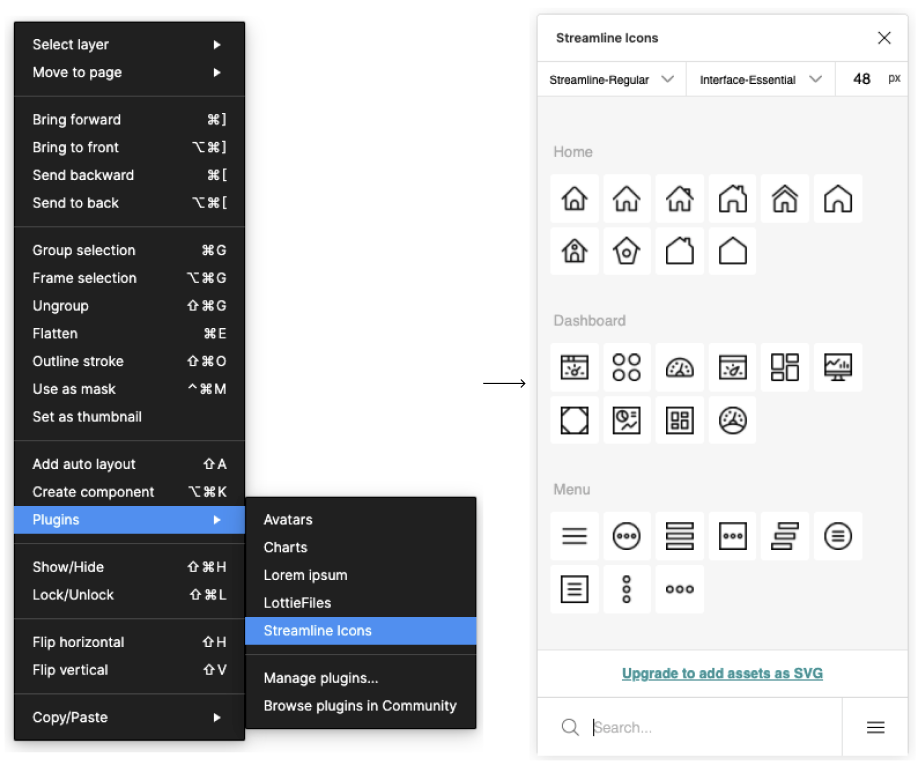
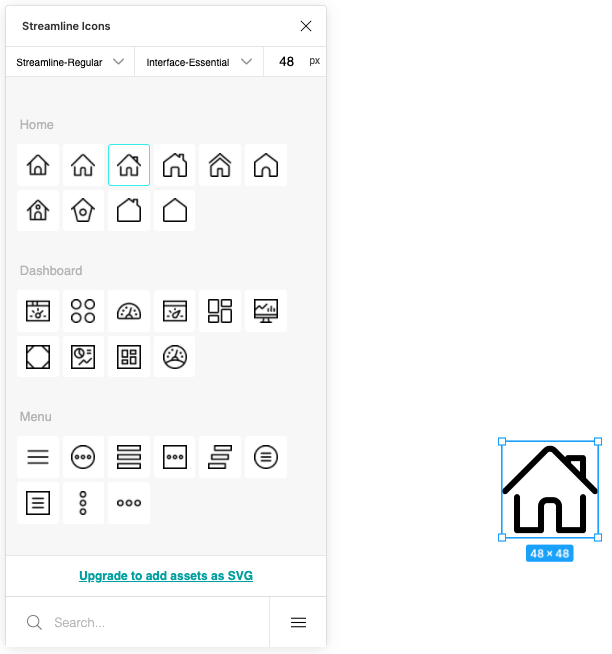
2]. Select the Icon from the Plugin, for example the Home Icon.
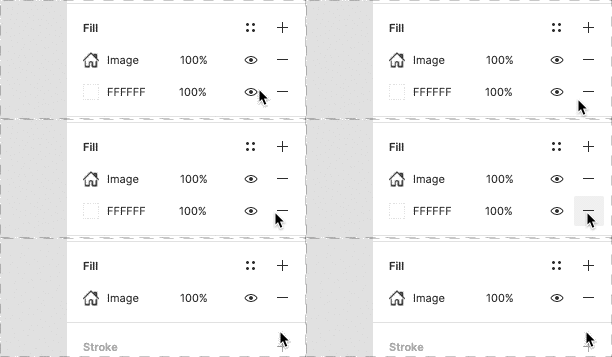
3]. Select the Icon and delete the “FFFFFF” fill from the image in the design panel on the right. This will erase the icon to its borders thus removing the unwanted background.
Delete the contents from the design menu on the right side.
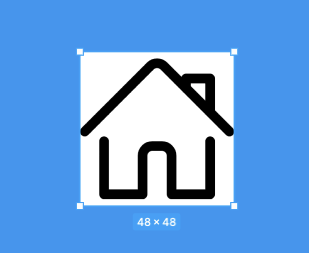
Icon without white background.
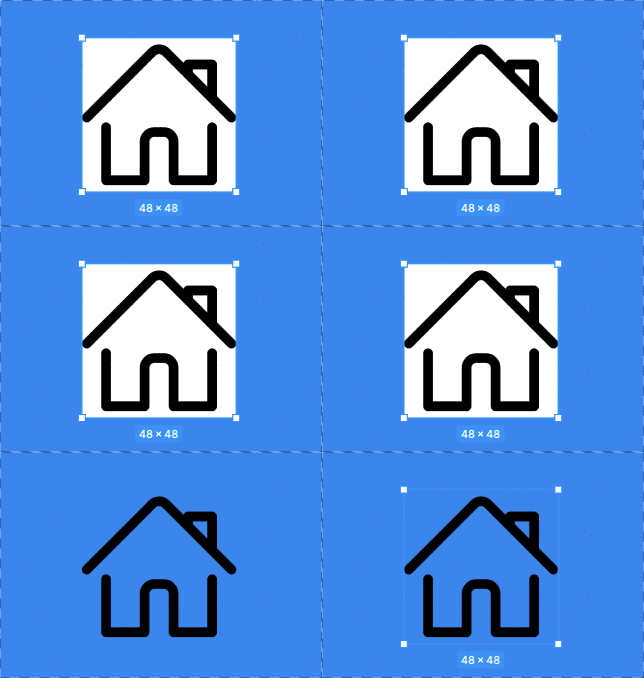
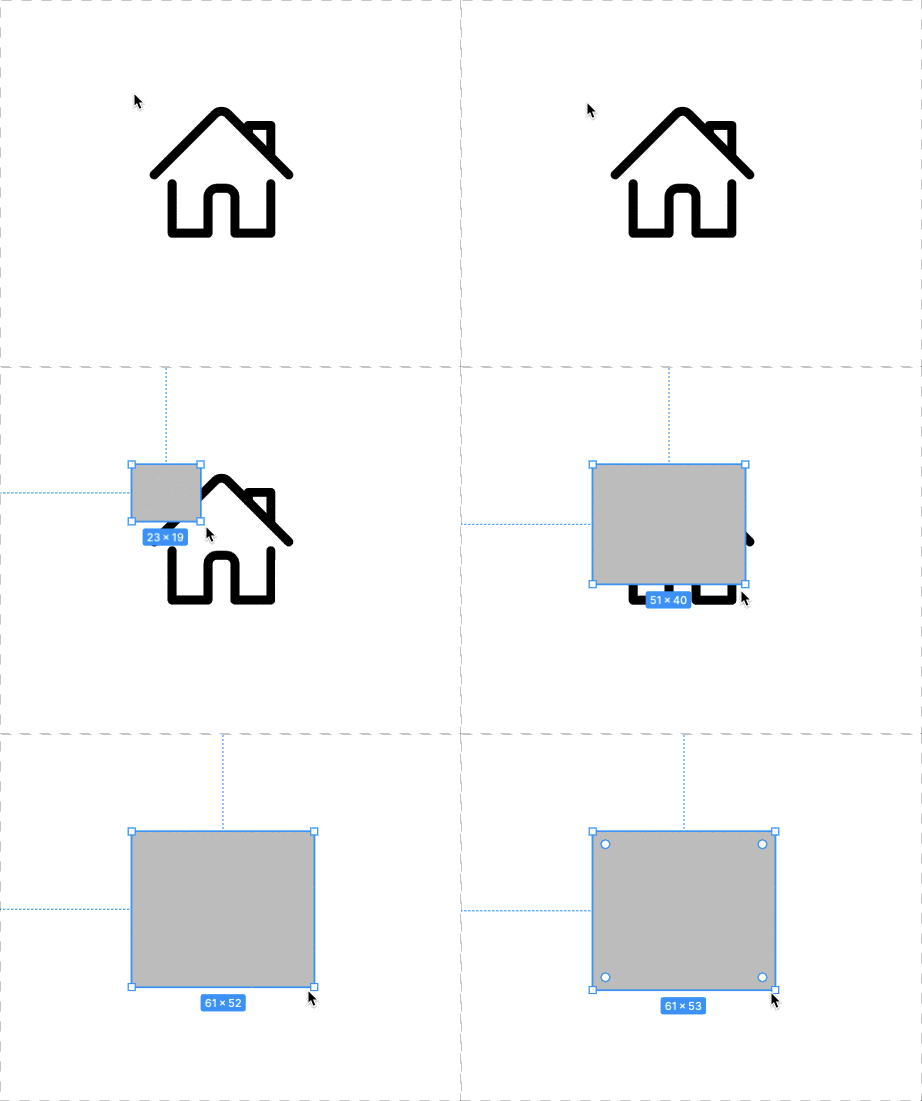
4]. Draw a rectangle on top of the icon, make sure the rectangle has the same dimensions as the Icon, for example 48x48 as in the image above. If not, it can be adjusted later from the design panel on the right.
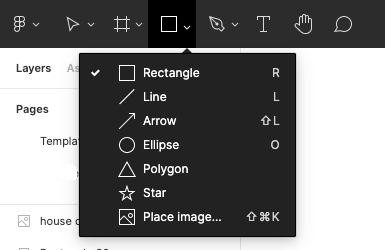
Select Rectangle from the Shape-tools on the toolbar at Top-Left.
Draw a rectangle over the Icon. Adjust its size to fit the dimensions of the Icon.
5]. Select the Icon and Rectangle by pressing Cmd+Click on each item on the Layer, or manually on the frame and open the Right Click Menu, then select Use As Mask (shift+cmd+m).
Cmd + click on Layers to select it.

Right Click Menu -> Use as mask.

Results

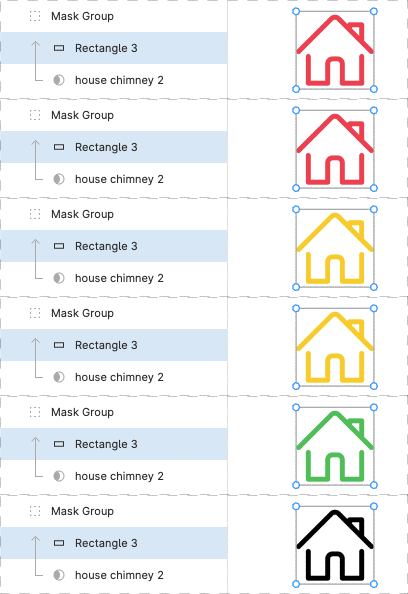
6]. Change the color of the Rectangle in the Mask to achieve the desired result.
Red colored icon.
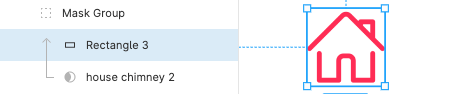
Blue colored icon.

Icons can be any color.
I found this trick quite useful and easy to learn, and the end result is equally amazing. It works well with custom image files as well, I will try to add more scenarios to this document and keep it updated with more findings along the way. Feel free to leave your thoughts or ideas in the comments below. I am always looking out to learn new things.